

.svg)




.png)
Need help from the IT team? The fastest way to get support is to raise a ticket through the Helpdesk Portal. This guide walks you through composing a ticket and checking on its progress.
1. Open a new ticket
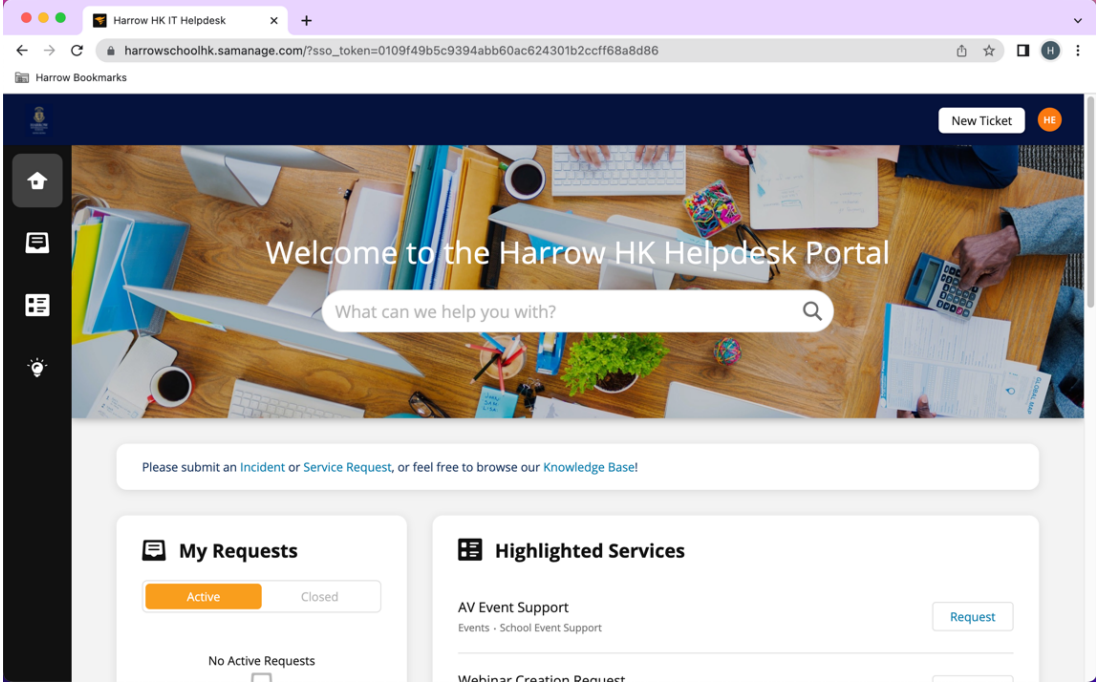
From the main page of the Helpdesk, click "New Ticket" in the top-right corner.
2. Fill in the ticket details
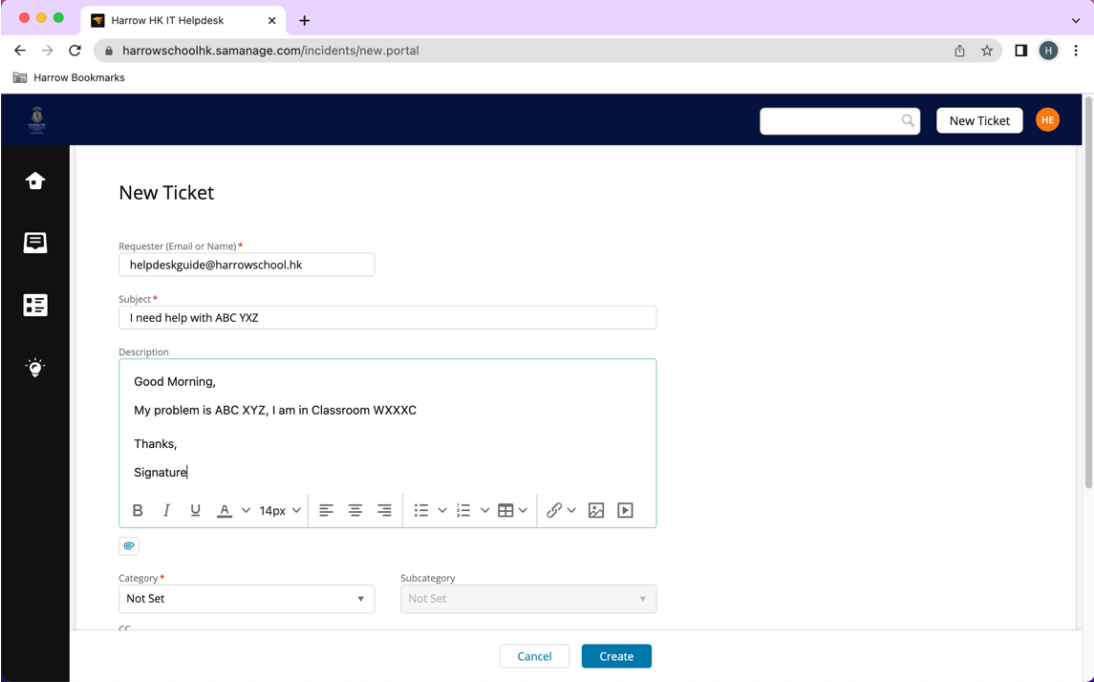
Compose your ticket with three things:
- Subject — a short summary of the problem (e.g. "Cannot connect to printer in Room 204")
- Description — details of what's happening. Include where you are, what you were trying to do, and any error messages you saw.
- Category — pick the option that best matches your issue
When everything's filled in, click Create.
3. Track your ticket
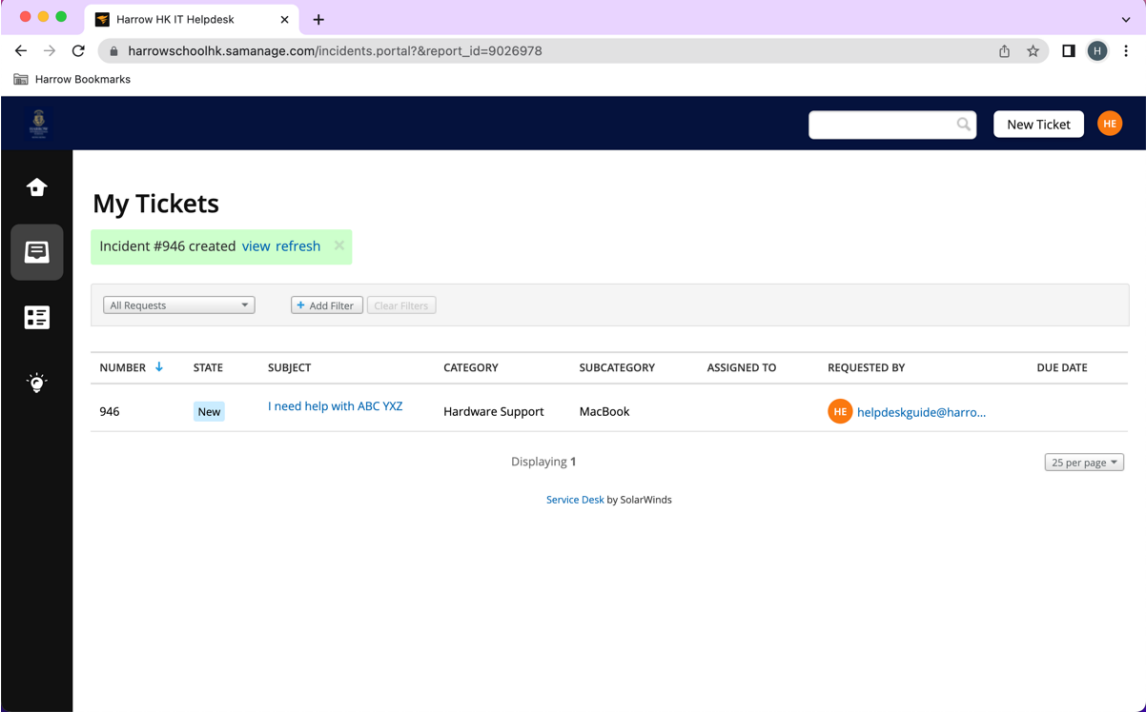
You'll receive updates by email. You can also check the status of your tickets at any time by going to My Tickets (the second icon on the left menu bar in the Helpdesk).
4. Reply to a ticket
You can respond to the IT team in two ways:
- Reply by email — just reply to the notification email you received, and your message will be added to the ticket automatically.
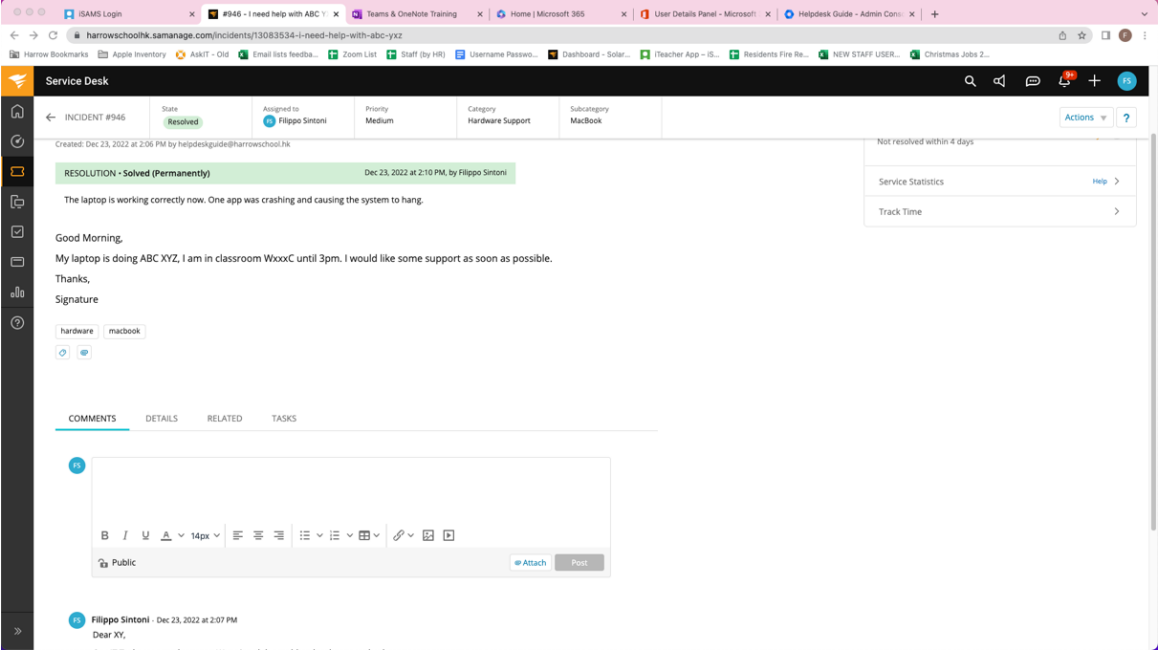
- From the ticket page — open the ticket and type your reply directly in the Comments section.
Tips for a faster response
- Use a clear, specific subject — "Wi-Fi not working" is less useful than "Wi-Fi keeps dropping every few minutes on my iPad"
- Mention your location (classroom, building, floor) so the IT team can find you if needed
- Pick the right category — it helps route your ticket to the right person faster
Need help?
If you can't access the Helpdesk Portal at all, come and see the IT team in person and we'll help you get a ticket raised.