

.svg)





Dear Colleagues,
Welcome Back!
Further to the email last week, please find additional information to get you started with printing and scanning on the new Canon devices.
As part of the change from Ricoh to Canon, we have pushed the new printer drivers and the Canon uniFlow iPad App onto your school-issued MacBook and iPad devices. Upon checking your Printer settings on your MacBook, you will notice two Canon drivers:
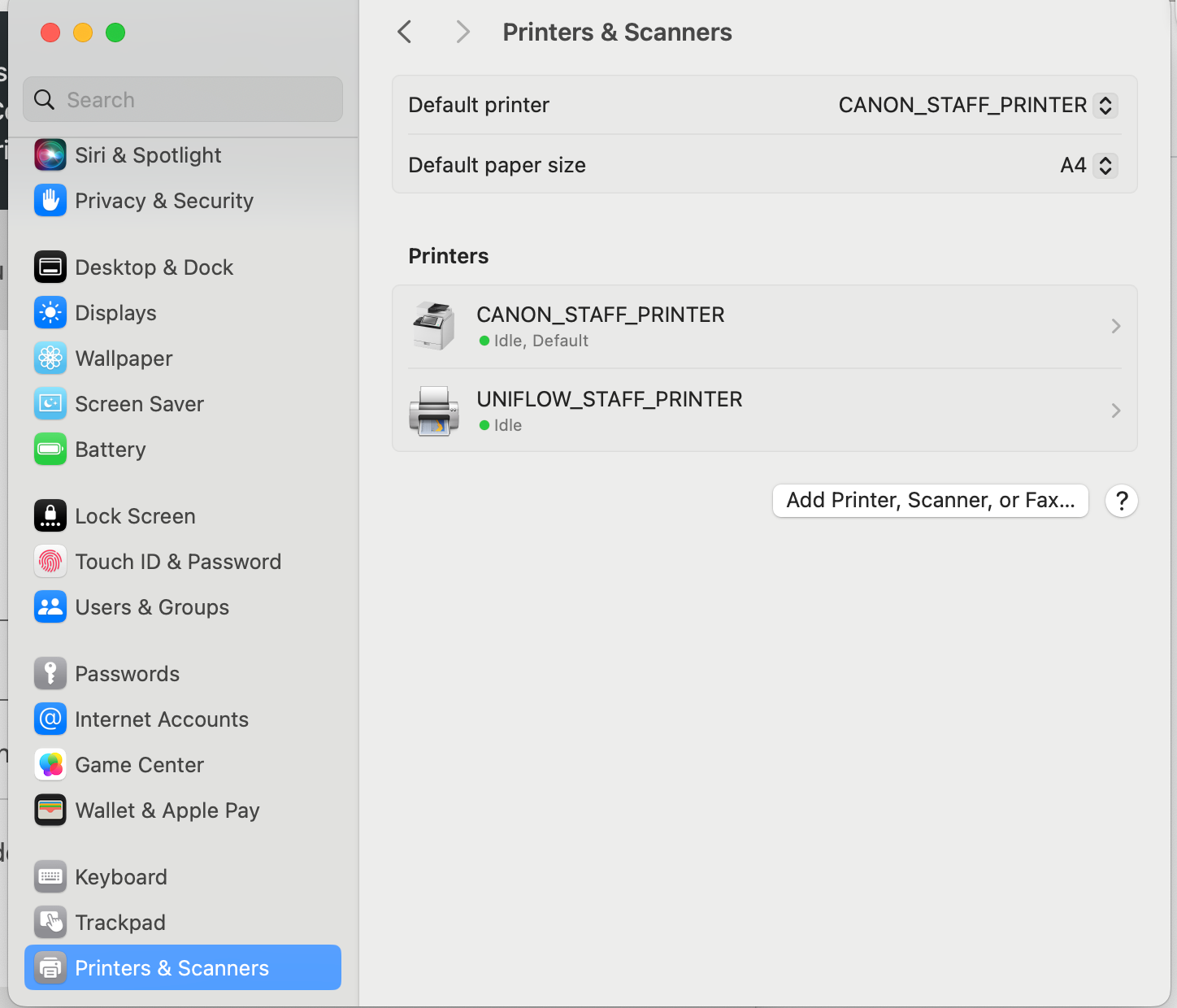
- CANON_STAFF_PRINTER: Set as your default print driver for in-school printing.
- UNIFLOW_STAFF_PRINTER: Select this print driver for printing outside the school network. You can retrieve your printouts from any printer upon your return to school.
- On your iPad, the uniFlow App has been seamlessly pushed for wireless printing capabilities.
Self-Help Videos
To help you set up your devices and get started, we have curated some instructional self-help videos:
- How to Set Up MacBook Printing
- How to Set Up UniFlow Dashboard + Mobile or iPad Printing
- Staff Card Registration Guide
- Cardless Printing (for those who forget their Staff Card at home)
More videos detailing various features, tips, and tools will be continually added. You can access these videos from the link below:
📁 Reprographics Training Videos
Enabling "Print from Home" and "Scan to OneDrive"
Your cooperation is required in enabling the "Print from home" and "Scan to OneDrive" functionalities. Our cloud-based print system is now integrated with our Microsoft 365 accounts for seamless access, so you will be required to sign in to your O365 account to enable these functionalities.
1. Access the uniFlow Portal and App
Click on the link below to access your uniFlow Portal. Sign in using your O365 account to manage print job logs, send print jobs remotely, view/reset your PIN for Cardless printouts, check your print budget, and access other essential details related to your uniFlow account. The uniFlow App has already been installed on your devices for iPad printing.
https://ct03392-harrow.sg.uniflowonline.com
For additional guidance, refer to the video tutorial here.
2. Connect Your OneDrive to uniFlow for Scan to OneDrive
Grant permission for uniFlow to access your OneDrive for the Scan to OneDrive feature. Click on the link below to initiate the connection:
https://ct03392-harrow.sg.uniflowonline.com/#OAuthRequest/OneDriveForBusiness
Help and Support
If you encounter any difficulties or have questions while setting up the new system, feel free to reach out to the IT team for assistance. Natraj, our Reprographics Officer, will be available in the Learning Lounge throughout CPD week to provide hands-on support to those who require assistance in getting started.
Warm regards,
Dinesh Alwani
Director of ICT