

.svg)





The Problem: "Login with Microsoft" May Fail
Following our recent email domain update, you may find that clicking the "Login with Microsoft" button on the Schoolsbuddy homepage results in an error or a login loop.
Here is a simple, one-time workaround to restore your access.
The Solution: Log in with Google & Link Your Microsoft Account
You only need to do this once. The process involves logging in with your school Google account and then re-linking your Microsoft account.
Step 1. Log in with your Google Account
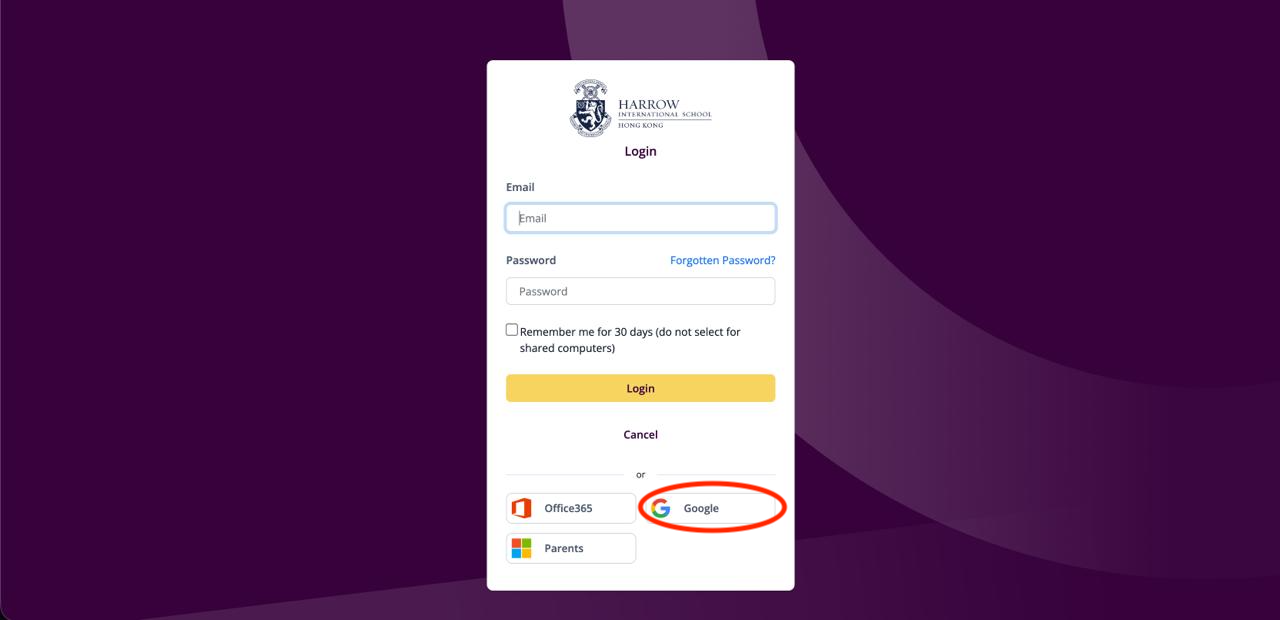
On the Schoolsbuddy login page, click the "Login with Google" button. Use your Harrow Google account (e.g. username@harrowschool.hk) to log in as you normally would.
Step 2. Navigate to My Account
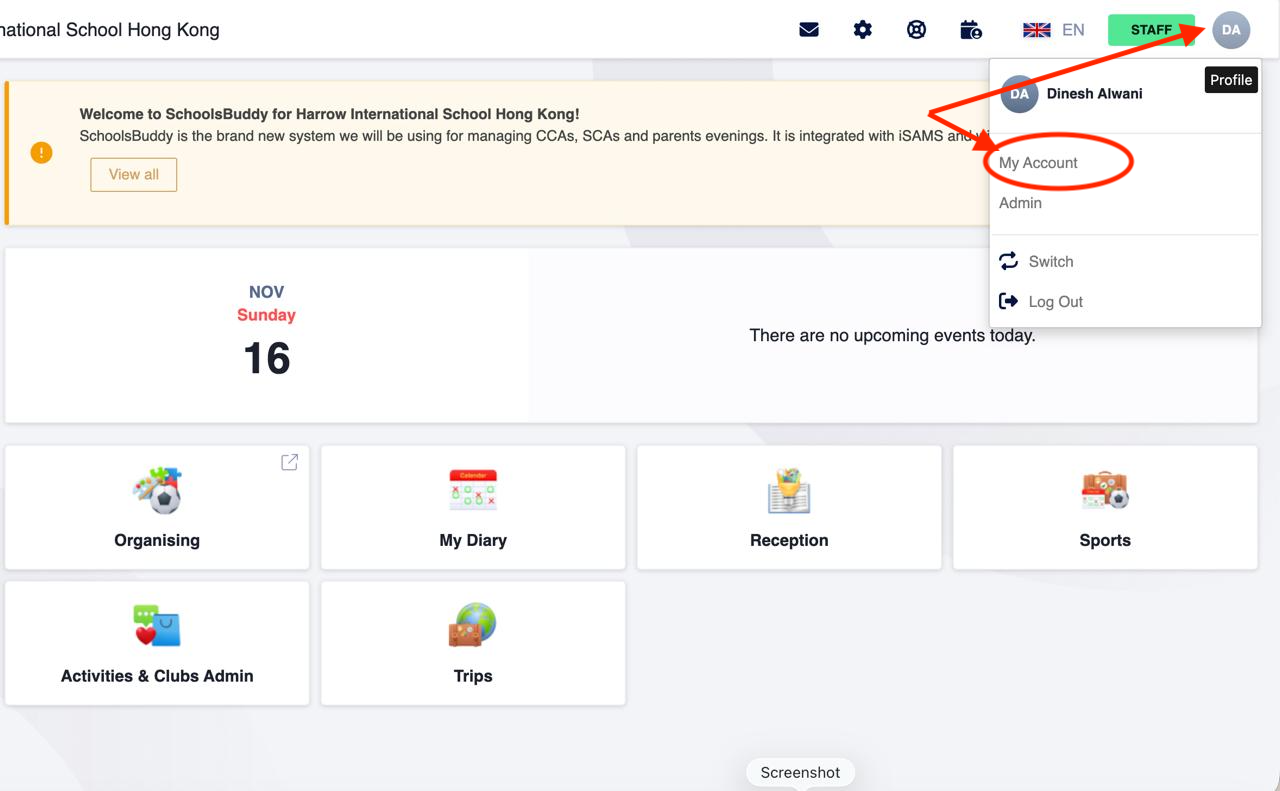
Once you are logged in, click on your profile icon or name in the top-right corner. From the menu, select "My Account".
Step 3. Find "Single Sign On"
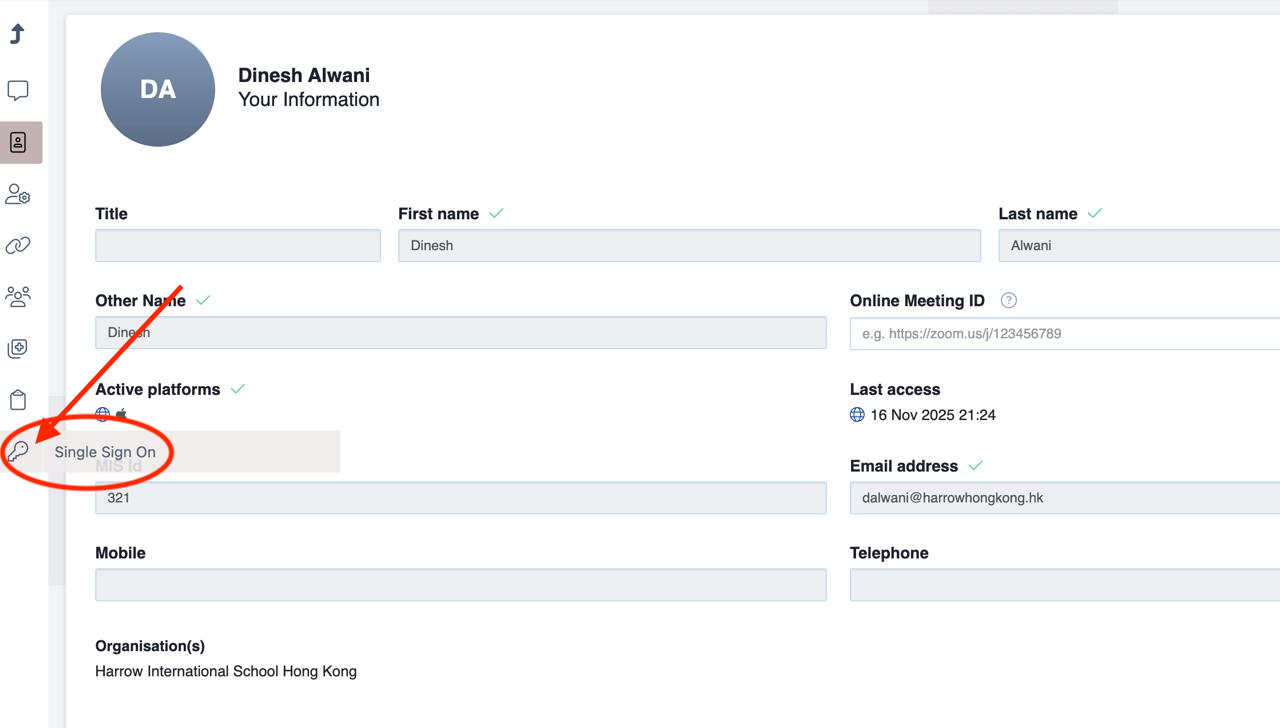
Inside your settings, find the key icon labelled "Single Sign On" on the left sidebar and click it.
Step 4. Link Your Microsoft Account
Click "Link Account" where it says "Office365", as shown below. Sign in with your Microsoft Account if prompted.
This will re-establish the connection. From now on, you should be able to use the "Login with Microsoft" button on the main page again.
.png)
Still need help?
If you have any trouble with this guide, please contact the IT Service Desk:
- Email: askit@harrowhongkong.hk
- Visit: Rm L401O in the Learning Lounge, 4/F